Support our educational content for free when you buy through links on our site. Learn more
12 Smart Ways to Integrate Technology Into Lessons 🎯

How can technology be integrated into lesson plans for better outcomes? Start with a clear learning goal, then choose technology that helps students practise, collaborate, create, access content, or receive useful feedback. The tool should serve the lesson—not take it over.
We’ve seen a simple spreadsheet turn a science activity into a lively debate about evidence: students graphed the same data, spotted different patterns, and had to defend their predictions. The technology mattered because it helped make student thinking visible. A screen full of clicks, on the other hand, would have told us much less.
The best technology-integrated lessons also plan for accessibility, privacy, and the occasional Wi-Fi woble. Measure what students learn—not how long they spend on an app.
Key Takeaways
- Begin with the learning objective. Choose a tool only when it improves the task or helps students meet the goal.
- Use technology purposefully for feedback, collaboration, simulations, research, creative work, accessibility, and thoughtful AI support.
- Keep teacher judgment and human interaction central. Digital tools should support—not replace—good instruction.
- Plan for inclusion and reliability. Check accessibility, privacy, device access, and a non-digital backup.
- Measure learning with real evidence. Combine digital results with student explanations, work samples, discussion, and assessment.
Table of Contents
- ⚡ Quick Tips and Facts
- 🧭 What Technology Integration in Lesson Plans Really Means
- Technology integration vs. using devices for their own sake
- The role of learning objectives and pedagogy
- 📚 How Classroom Technology and Instructional Design Have Evolved
- 🎯 Start with Learning Goals, Not Gadgets
- Aligning digital tools with standards and lesson outcomes
- Choosing technology with the TPACK and SAMR frameworks
- 🛠️ 12 Practical Ways to Integrate Technology Into Lesson Plans
- 1. Use interactive presentations and multimedia
- 2. Add formative assessment and live feedback
- 3. Personalize practice with adaptive learning tools
- 4. Support collaboration with shared digital workspaces
- 5. Build research and information-literacy skills
- 6. Create student podcasts, videos, and digital stories
- 7. Use simulations, virtual labs, and educational games
- 8. Bring coding, robotics, and computational thinking into lessons
- 9. Extend learning with virtual field trips and guest speakers
- 10. Make reading and writing more accessible with assistive technology
- 11. Use learning management systems for organization and continuity
- 12. Incorporate AI thoughtfully for planning and learning
- 🧩 Technology Integration Across a Complete Lesson
- Before class: preparation and accessibility checks
- During class: instruction, practice, and interaction
- After class: feedback, reflection, and follow-up
- 🏫 Choosing the Right Classroom Technology
- Tools for assessment, collaboration, creation, and accessibility
- Evaluating cost, privacy, usability, and evidence
- Matching tools to grade level and subject area
- ♿ Inclusive Technology Integration for Diverse Learners
- Universal Design for Learning and multiple ways to participate
- Supporting students with disabilities and multilingual learners
- Reducing the digital divide and providing offline options
- 📈 Measuring Whether Technology Improves Learning Outcomes
- Using formative and summative assessment data
- Tracking engagement, understanding, and student growth
- Adjusting instruction based on evidence
- ✅ Benefits of Technology-Enhanced Lesson Plans
- ⚠️ Challenges, Risks, and Practical Limitations
- Protecting student privacy and cybersecurity
- Addressing algorithmic bias and inaccurate AI output
- Preventing distraction, screen fatigue, and reduced interaction
- Managing academic integrity and responsible AI use
- Planning for costs, connectivity, and technical failures
- 🧑 🏫 Teacher Training, Classroom Management, and Implementation
- Building educator confidence and digital literacy
- Setting routines for devices and online collaboration
- Creating a backup plan when technology fails
- 📝 Sample Technology-Integrated Lesson Plan Template
- Lesson objectives, activities, tools, and assessment
- Example lesson plan for a core subject
- 🔭 Emerging Trends in Educational Technology
- Artificial intelligence, augmented reality, and virtual reality
- Learning analytics and personalized instruction
- 💡 Quick Tips for Better Technology-Integrated Lessons
- 🏁 Conclusion
- 🔗 Recommended Links
- ❓ FAQ
- How can teachers integrate technology into lesson plans effectively?
- What are the best technology tools for classroom learning?
- How does technology improve student learning outcomes?
- How can teachers use technology without distracting students?
- How can technology integration support diverse learners?
- How should teachers address privacy and AI concerns?
- What can teachers do when students lack devices or internet access?
- 📖 Reference Links
⚡ Quick Tips and Facts
Technology improves a lesson when it helps students think, practise, create, collaborate, or get feedback more effectively—not merely when it puts a screen in front of them. We recommend planning the learning first, then choosing the tool.
| Quick fact | What it means for your lesson |
|---|---|
| Start with an observable learning objective. | Say what students will do, how they will show it, and what counts as success. Stanford’s guide to creating learning outcomes recommends clear, measurable outcomes rather than vague goals such as “understand.” |
| Match the tool to the task. | Use a polling tool for a quick check, a shared document for collaborative writing, and a simulation when students need to test a process that is hard to observe directly. |
| Keep a non-digital route available. | A device, connection, accessibility feature, or platform may fail. Prepare a paper, partner, or teacher-led alternative. |
| Treat AI output as a draft, not an authority. | Check facts, bias, reading level, privacy, and curriculum fit before using generated content. The U.S. Department of Education’s report on AI and teaching and learning frames AI as a tool that should support human decision-making. |
| Protect student relationships. | Screens should create more time for conversation, feedback, and individual support—not crowd them out. |
| Measure learning, not clicks. | A lively quiz can be engaging, but engagement alone does not prove mastery. Pair activity data with student explanations, work samples, and assessment results. |
Our quick planning check: Can students explain why they are using this tool? Can you tell what they learned from the activity? If either answer is no, the technology may be decorating the lesson rather than strengthening it.
For a practical planning foundation, start with our lesson plan resources. Later, we’ll turn these principles into a complete lesson sequence—and show why a perfectly functioning app is still not the same thing as a perfectly designed lesson.
🧭 What Technology Integration in Lesson Plans Really Means
Technology integration is the intentional use of digital tools to advance a learning objective. That may mean using a spreadsheet to identify patterns in lab data, a screen reader to access a text, or a shared whiteboard to compare different solutions.
It does not mean using every tool available. Nor does it mean that an activity becomes meaningful simply because students complete it on tablets.
Technology integration vs. using devices for their own sake
A useful test is to ask: What does the technology let students do that matters to this lesson?
| Lesson purpose | Technology can help by… | It is probably unnecessary when… |
|---|---|---|
| Check understanding | Collecting responses from everyone quickly, including quieter students | The same check is faster and clearer with a show of hands |
| Explore a complex idea | Leting students manipulate a model, simulation, or dataset | Students are only watching a video passively |
| Collaborate | Allowing students to co-author, comment, and revise shared work | Every student is completing the same isolated worksheet on a device |
| Improve access | Providing captions, text-to-speech, translation support, or adjustable display | The tool adds barriers or fails to meet an identified need |
| Create and communicate | Helping students make a podcast, presentation, diagram, or digital story | A flashy format distracts from the quality of the students’ thinking |
A Grade 6 class might use a digital simulation to test how changing one variable affects a system. But if students only click through preset screens without making predictions, recording evidence, or explaining results, the simulation is entertainment with a science-themed hat.
The role of learning objectives and pedagogy
Good instructional design connects three pieces:
- Objective: What should students know or be able to do?
- Learning experience: What will they do to practise that skill?
- Evidence: How will you know they achieved it?
Stanford’s learning-outcomes guide describes outcomes as statements that clarify both learning and assessment. A technology-specific objective might read:
Given a shared set of class science data, students will use Excel to create a labelled graph and write one evidence-based prediction.
The tool is part of the task, but the learning remains the focus: interpreting data and supporting a prediction. Technology choices should also connect with differentiated instruction, assessment techniques, and collaborative learning where appropriate.
📚 How Classroom Technology and Instructional Design Have Evolved
Classroom technology has moved from one-way media—such as films and overhead projectors—to connected tools that let students create, respond, collaborate, and receive feedback. The biggest shift is not the screen itself. It is the possibility of making learning more interactive and responsive.
Today, a teacher might pair a brief explanation with a simulation, gather every student’s answer through a live poll, then adjust instruction based on what the class reveals. A student might use speech-to-text to draft an idea, revise it with a partner, and publish it for an authentic audience.
The promise comes with a familiar classroom reality: a tool can be powerful and still be the wrong tool for this particular lesson. The video linked in this article emphasizes choosing ICT tools for their relevance to lesson objectives and listing them clearly in the plan, including accessible resource links. We agree. “Use technology” is not a plan; “students use a simulation to test and explain a prediction” is.
The U.S. Department of Education’s AI report also offers a useful lens for emerging tools: technology should support educators and learners while keeping human judgment and relationships central. That principle applies to AI, learning platforms, and even the classroom quiz that promises to make everything more fun.
🎯 Start with Learning Goals, Not Gadgets
Before opening an app store or asking what other teachers are using, write down what students should learn. Then decide whether technology genuinely improves the learning experience.
Aligning digital tools with standards and lesson outcomes
Use this sequence to plan with purpose:
- Name the learning need. What concept, skill, misconception, or practice requires attention?
- Write a student-centred objective. Use an observable verb such as compare, calculate, explain, design, or evaluate.
- Decide what evidence will demonstrate learning. This could be a written explanation, labelled model, oral response, quiz result, or performance.
- Choose the teaching strategy. Consider modelling, guided practice, discussion, independent work, or peer feedback.
- Select a tool only if it adds value. Identify whether it improves access, feedback, collaboration, practice, or the quality of the task.
- Plan for access and failure. Check devices, connectivity, accounts, captions, and alternatives in advance.
- Review the evidence after the lesson. Use student work and responses to decide what to reteach or extend.
For a clearer objective, Stanford recommends considering Audience, Behavior, Condition, and Degree—the ABCD structure. For example:
- Audience: Grade 6 students
- Behavior: create a graph and explain a trend
- Condition: using the class dataset in Excel
- Degree: include labelled axes and support the explanation with two data points
Technology fits into the condition when it matters. It should not become the objective by itself.
Choosing technology with the TPACK and SAMR frameworks
Two planning frameworks can help teachers evaluate a tool. Neither is a scorecard for “good teaching”; use them as prompts for professional judgment.
| Framework | Main question | How to use it |
|---|---|---|
| TPACK | How do content knowledge, teaching methods, and technology work together? | Check that the tool suits the subject content and the way students need to learn it. |
| SAMR | Does technology substitute for, augment, modify, or redefine a task? | Consider whether the tool improves a task or enables a substantially different kind of learning. |
The SAMR levels are often described as:
- Substitution: A digital worksheet replaces a paper worksheet.
- Augmentation: The digital worksheet adds features such as instant hints or audio support.
- Modification: Students collaborate on a shared document with ongoing peer and teacher feedback.
- Redefinition: Students publish a multimedia investigation and receive feedback from a genuine audience beyond the classroom.
Higher is not automatically better. A well-designed paper discussion may teach more than a poorly designed virtual project. The right question is whether students learn more effectively, not whether the app reaches the top of a framework.
🛠️ 12 Practical Ways to Integrate Technology Into Lesson Plans
The best tool depends on your students, school policies, learning objective, accessibility requirements, and available devices. These ideas are starting points—not an order to cram 12 apps into Tuesday.
1. Use interactive presentations and multimedia
Tools such as Google Slides and Microsoft PowerPoint can combine short explanations, images, diagrams, narration, and question prompts.
Try this:
- Present one small concept.
- Pause for a prediction or discussion question.
- Ask students to explain a visual, not merely watch it.
- Finish with a brief response that reveals understanding.
Benefit: Students can revisit a visual explanation and access presentation content in different ways.
Drawback: Long, text-heavy slides are still long, text-heavy slides—even when the font is blue.
2. Add formative assessment and live feedback
Tools such as Kahoot! and Quizz can support quick knowledge checks and provide teachers with response data. For a more discussion-oriented approach, a teacher may use a live poll or a digital exit ticket.
Use a short question set to surface misconceptions, then respond instructionally:
- Re-explain if many students share the same misconception.
- Offer targeted practice if a smaller group needs it.
- Extend the task if most students are ready to move on.
The data can be useful, but a fast answer is not always evidence of deep learning. Ask students to explain their reasoning as well as select an option. Explore more ideas in our assessment techniques collection.
3. Personalize practice with adaptive learning tools
Adaptive programs adjust practice based on student responses. Depending on the tool and its settings, students may receive different questions, hints, or suggested next steps.
Potential benefits: students can practise at an appropriate level, and educators may spot patterns in performance.
Things to check: how recommendations are generated, whether student information is collected, and whether the platform supports the curriculum and learners’ needs. Adaptive pathways should inform teacher decisions, not silently make them.
A teacher still needs to check whether a student has misunderstood a core idea, guessed correctly, or simply needs a different explanation.
4. Support collaboration with shared digital workspaces
Tools such as Google Docs and Microsoft OneNote let students co-write, comment, organize notes, and revise shared work.
To prevent the familiar “one student types while three students admire the cursor” problem:
- Assign rotating roles such as researcher, recorder, checker, and presenter.
- Ask every student to contribute an idea or comment.
- Use version history or peer feedback to make thinking visible.
- End with an individual reflection or explanation.
Digital collaboration works best when paired with explicit expectations and teaching routines. See our collaborative learning strategies.
5. Build research and information-literacy skills
Students can use curated digital sources, library databases, and search engines to investigate a question. Teach them to check who created a source, what evidence it provides, when it was published, and whether other reliable sources agree.
A practical mini-lesson:
- Give students two sources that make different claims.
- Ask them to identify the author, evidence, date, and purpose.
- Compare what each source supports—and what it does not.
- Have students cite evidence in their own explanation.
Technology makes information easier to find; it does not automatically make information trustworthy. This is an ideal moment to develop critical-thinking skills.
6. Create student podcasts, videos, and digital stories
Students can explain a process, tell a historical story, record a debate, or teach a concept using tools such as Canva or familiar audio and video software approved by the school.
Set boundaries before the creative work begins:
- Give students a clear learning rubric.
- Offer a non-video alternative, such as an audio recording or written script.
- Teach permission, copyright, attribution, and respectful online sharing.
- Avoid requiring students to publish personal information or appear on camera.
The learning is in the explanation and design decisions—not in how many transitions the project contains.
7. Use simulations, virtual labs, and educational games
Interactive simulations can let students test variables, revisit experiments, or observe systems that are difficult to access in a classroom. PhET Interactive Simulations offers free interactive science and mathematics simulations.
A simple simulation cycle:
- Predict: What do students expect to happen?
- Test: Change one variable at a time.
- Record: Capture observations or data.
- Explain: Use evidence to account for the result.
- Transfer: Apply the idea to a new example.
A game can motivate practice, but game points are not the learning objective. Ask students to explain the concept behind a successful move.
8. Bring coding, robotics, and computational thinking into lessons
Platforms such as Scratch let students create interactive stories, animations, and games while practising sequencing, debugging, and logical reasoning.
Coding can connect to subject content:
- Math: model patterns, coordinate grids, or repeated operations.
- Science: simulate a system or represent a sequence of events.
- Language arts: build an interactive story with choices and consequences.
- Social studies: create a branching historical scenario using evidence.
Keep the focus on problem-solving, not simply making a character spin around. Unless, of course, the spinning character is demonstrating angular motion—then you have a lesson.
9. Extend learning with virtual field trips and guest speakers
Video calls, recorded interviews, and virtual tours can connect classroom learning with museums, experts, historical sites, and workplaces. Plan a purpose for the visit:
- Prepare questions in advance.
- Assign students a specific observation task.
- Pause to discuss evidence during or after the tour.
- Follow up with a reflection or product linked to the lesson objective.
A virtual visit is not a substitute for every hands-on experience, but it can make otherwise inaccessible places and perspectives part of classroom study.
10. Make reading and writing more accessible with assistive technology
Accessibility features can support students with disabilities, multilingual learners, and students who benefit from alternate ways to access or express information. Depending on the device and school settings, features may include:
- Text-to-speech and screen readers
- Speech-to-text and dictation
- Captions and transcripts
- Adjustable font size, contrast, and spacing
- Translation and vocabulary supports
- Alternative input methods
The CAST Universal Design for Learning Guidelines offer a framework for planning multiple ways for learners to engage with content, access information, and show what they know. Digital supports should be offered respectfully and checked with students: a feature is only helpful if it works for the person using it.
11. Use learning management systems for organization and continuity
Platforms such as Google Classroom and Canvas can organize assignments, resources, announcements, and feedback.
A learning management system is most useful when the structure is predictable:
- Use consistent names for topics and tasks.
- Post instructions in short, ordered steps.
- Include due dates, criteria, and support materials.
- Check that links work for students, not only for staff.
- Keep a paper or offline route for students who cannot reliably access the platform.
A digital classroom can reduce lost handouts. It can also become a very tidy place to lose an assignment in six different folders. Simplicity wins.
12. Incorporate AI thoughtfully for planning and learning
AI tools may help educators brainstorm lesson variations, draft discussion prompts, adapt reading levels, or create first-pass materials. The University of Illinois article “AI in Schools: Pros and Cons” describes possibilities including supporting lesson planning, generating activities, and tailoring resources. Those possibilities need teacher review and school-approved safeguards.
A responsible educator workflow:
- Provide the tool with only information that is safe and appropriate to share.
- Ask it for a draft, alternative, or starting point—not a final authority.
- Verify facts, citations, reading level, and potential bias.
- Check that the material aligns with your standards and students’ needs.
- Revise it in your own professional voice.
- Tell students when AI is permitted, what it can do, and how they must acknowledge or evaluate its use.
Possible planning tools include Canva Magic Write, Curipod, and Eduaide. Features, access requirements, and data practices can change, so check current terms and district policy before using them with student information.
The key distinction: AI can help produce a worksheet. It cannot reliably decide whether that worksheet is appropriate for your particular class without your review.
🧩 Technology Integration Across a Complete Lesson
A strong lesson uses technology at the moment it serves learning—not as a continuous background condition.
Before class: preparation and accessibility checks
Before students arrive:
- Check the objective, success criteria, and assessment.
- Open the app or website from a student account if possible.
- Confirm links, device access, permissions, captions, and audio.
- Prepare instructions in more than one format when useful.
- Create a paper, partner, or teacher-led alternative.
- Decide what information you will collect and how you will protect it.
The video linked as the featured video makes a practical point: include the ICT tools and accessible links in the lesson plan itself. That small planning step prevents the “I thought you had the link” scavenger hunt.
During class: instruction, practice, and interaction
A technology-supported lesson might follow this sequence:
| Lesson phase | Teacher move | Student evidence |
|---|---|---|
| Launch | State the goal and model the tool briefly | Students can explain the task and criteria |
| Explore | Present a prompt, dataset, simulation, or source | Students make predictions, observations, or questions |
| Practise | Use the tool for guided or independent work | Student responses or work samples reveal understanding |
| Discuss | Compare reasoning and surface misconceptions | Students explain why evidence supports a claim |
| Check | Use an exit response or quick assessment | Teacher identifies next steps |
Keep teacher-student interaction visible. Circulate, ask questions, listen to student explanations, and pause the screens when conversation would help more.
After class: feedback, reflection, and follow-up
After the lesson, look beyond completion rates:
- Which objective did students meet?
- What errors or misconceptions appeared?
- Who needs further instruction or a new route into the material?
- Did the tool improve access or generate unnecessary friction?
- Was student information collected, and was it handled appropriately?
Use the results to plan follow-up. If students can identify the right answer but cannot explain why, the next lesson may need discussion and reasoning—not another round of the same quiz.
🏫 Choosing the Right Classroom Technology
There is no universal “best app.” A good fit depends on the learning task, student needs, school infrastructure, accessibility, privacy, and educator support.
Tools for assessment, collaboration, creation, and accessibility
| Teaching purpose | Possible tools | Useful planning question |
|---|---|---|
| Check understanding | Kahoot!, Quizz, classroom polling tools | Will the responses help me decide what to teach next? |
| Collaborate | Google Docs, Microsoft OneNote | Does each student have a meaningful role? |
| Create | Canva for Education, Scratch | Is the content and communication being assessed, not just decoration? |
| Explore science and math | PhET Interactive Simulations | Will students predict, test, record, and explain? |
| Organize learning | Google Classroom, Canvas | Can students reliably find instructions and submit work? |
| Support access | Built-in screen readers, captions, text-to-speech, speech-to-text | Does the feature meet the needs of these learners and work with their devices? |
| Draft planning materials | Canva Magic Write, Curipod, Eduaide | Is AI permitted, and can I verify and revise the output? |
Evaluating cost, privacy, usability, and evidence
Use this checklist before adopting a tool:
- Learning value: Does it improve the task or merely change its format?
- Accessibility: Can students use it with the devices and supports available to them?
- Privacy: What information is collected, stored, shared, or used to train systems?
- Security: Are accounts and permissions appropriate for students?
- Usability: Can students begin without losing a large share of the lesson to troubleshooting?
- Reliability: What happens if the connection drops?
- Evidence: Is there a credible reason to expect the tool will support the intended outcome?
- Implementation: Can educators receive training, guidance, and time to plan?
For student data, follow school and district policies and consult authoritative guidance such as the U.S. Department of Education’s Student Privacy Policy Office. Do not paste identifiable student information into an AI system unless the school has explicitly approved that use.
Matching tools to grade level and subject area
| Context | Strong technology use | Watch out for |
|---|---|---|
| Early elementary | Short interactive stories, read-aloud support, guided creation | Too many steps, excessive screen time, or tools that require independent navigation beyond students’ readiness |
| Upper elementary | Shared research, simple coding, interactive practice, multimedia explanation | Confusing competition with learning or assigning unequal group roles |
| Middle school | Simulations, digital debate, data analysis, peer review | Unchecked online sources and unclear expectations for AI or citation |
| High school | Disciplinary software, collaborative projects, datasets, production tools | Treating polished digital work as proof of strong reasoning |
| Mathematics | Dynamic representations, graphing, calculation checks | Leting automatic answers replace explanation of reasoning |
| Science | Data collection, simulations, visualization, virtual lab preparation | Using a simulation without prediction or evidence-based reflection |
| Language arts | Drafting, peer feedback, accessible reading, audio production | Confusing grammar correction with writing instruction |
| Social studies | Primary-source research, mapping, timelines, discussion | Treating search results or AI summaries as verified historical evidence |
For every age and subject, align the tool with students’ developmental readiness and the learning target. The same app can support one class beautifully and turn another into an IT help desk.
♿ Inclusive Technology Integration for Diverse Learners
Good technology integration expands access instead of creating a new barrier. That means planning for varied strengths, language backgrounds, sensory needs, prior knowledge, and access to devices and connectivity.
Universal Design for Learning and multiple ways to participate
CAST’s Universal Design for Learning Guidelines encourage educators to consider multiple ways for students to engage with learning, access information, and express what they know.
In practice, you might:
- Provide a written explanation, a labelled visual, and a short oral explanation.
- Offer speech-to-text, typing, drawing, or recorded responses where appropriate.
- Break a long digital task into clear checkpoints.
- Provide captions and transcripts for video or audio.
- Allow students to use accessibility features already built into their devices.
- Make success criteria clear before students begin.
Choice should be purposeful. If students are choosing a format, make sure every option can still show the same essential learning.
Supporting students with disabilities and multilingual learners
Technology can provide useful supports, including text-to-speech, speech recognition, captions, translation, enlarged text, and alternative input. The University of Illinois overview of AI in schools highlights potential uses of speech, text, and visual tools to adapt learning materials.
Use these supports thoughtfully:
- Ask students what helps rather than assuming a tool is suitable.
- Confirm that translations preserve the meaning and academic vocabulary.
- Review automated captions and generated content for errors.
- Keep accessible formats available when a platform does not work.
- Coordinate with special education, language-support, and assistive-technology staff.
AI detection deserves particular caution. The University of Illinois article raises concerns that non-native English writing may be incorrectly flagged as AI-generated. Do not treat an AI detector’s result as proof of misconduct. Review the student’s work, writing process, context, and school policy with care.
Reducing the digital divide and providing offline options
Not every student has equal access to a quiet study space, reliable internet, an updated device, or an adult who can troubleshoot at home. The National Educational Technology Plan discusses persistent divides in access and use.
Practical steps include:
- Check access privately instead of asking students to announce it publicly.
- Make materials downloadable or available in print where possible.
- Allow classroom time for tasks that require a device or connection.
- Avoid assuming that every student can use personal devices.
- Provide alternatives that meet the same learning objective.
- Check whether school-provided technology supports accessibility needs.
Equity is not simply giving everyone the same link. It is ensuring students have a realistic way to participate and demonstrate learning.
📈 Measuring Whether Technology Improves Learning Outcomes
A platform may report time on task, answer attempts, or completion. Those metrics can help—but they are not the same as learning.
Using formative and summative assessment data
| Evidence | What it can tell you | What it cannot tell you alone |
|---|---|---|
| Live poll responses | Which choices students select at a moment in time | Why they chose them or whether their reasoning is secure |
| Quiz performance | Accuracy on specific questions | Whether students can transfer learning to a new context |
| Student-created work | How students apply, explain, or communicate learning | Whether one tool caused the improvement |
| Discussion and oral explanation | How students reason and respond to others | Whether every student had an equal chance to participate |
| Platform analytics | Activity patterns and task completion | Whether activity was focused, meaningful, or understood |
Combine quick checks with explanations, writing, projects, observation, or other appropriate evidence. Our assessment techniques collection includes strategies for gathering useful evidence without turning every class into a testing marathon.
Tracking engagement, understanding, and student growth
Use a mix of indicators:
- Engagement: Are students participating purposefully?
- Understanding: Can they explain the concept and support their response?
- Growth: Are they improving from their starting point?
- Transfer: Can they use the skill in a new example?
- Access: Can different learners participate and demonstrate learning?
The Institute of Education Sciences What Works Clearinghouse provides reviews of education research and interventions. When evaluating a tool or approach, look for evidence relevant to your students, subject, and intended outcome rather than relying only on promotional claims or a popular app’s dashboard.
Adjusting instruction based on evidence
Use this short decision cycle:
- Collect evidence from student responses, work, and discussion.
- Identify a pattern rather than reacting to one surprising score.
- Choose an instructional response: reteach, practise, regroup, extend, or provide another explanation.
- Check again using a new question or task.
- Reflect on the tool: did it help you see learning more clearly?
Technology is valuable when the information it generates improves a teacher’s next decision. A spreadsheet full of data that nobody uses is not formative assessment; it is a very organized spreadsheet.
✅ Benefits of Technology-Enhanced Lesson Plans
When the design is sound, technology can offer meaningful advantages:
- More frequent feedback: Students can see where they need to revise or practise.
- Multiple ways to access content: Captions, audio, visual models, and assistive features can support participation.
- Active exploration: Simulations and manipulable models let students test ideas.
- Visible collaboration: Shared workspaces can reveal contributions, comments, and revisions.
- Authentic creation: Students can communicate their learning through media, code, data, or digital publishing.
- Responsive teaching: Carefully interpreted assessment data can help educators adjust instruction.
- Flexible access to materials: Learning platforms can keep directions and resources organized.
The University of Illinois article on AI in schools notes that AI may help generate or reinforce instructional materials and provide feedback. That can save preparation time, but it is not a guarantee of accuracy, quality, or better learning. Teacher expertise remains the filter that turns a tool’s output into suitable instruction.
The most important benefit is not novelty. It is the possibility of giving students better access, practice, feedback, and opportunities to explain their thinking.
⚠️ Challenges, Risks, and Practical Limitations
Technology can also create real classroom problems. The sensible response is not to reject every tool—or to adopt every tool—but to identify risks, set boundaries, and decide when a simpler approach is better.
Protecting student privacy and cybersecurity
Before students create accounts or submit work, check:
- What personal data does the tool collect?
- Who can see student work and account details?
- How long is information retained?
- Can content be used for advertising or AI training?
- Is the platform approved by your school or district?
- Does the activity require identifiable information at all?
Consult your district’s guidance and the U.S. Department of Education’s student privacy resources. Avoid uploading student names, records, photos, or individual performance details to unapproved services. Privacy is a design consideration, not a checkbox after the lesson is finished.
Addressing algorithmic bias and inaccurate AI output
AI systems can produce confident-sounding errors, incomplete explanations, or outputs that reflect bias in their data or design. The University of Illinois article discusses these concerns, including the risk that AI-detection systems may wrongly flag some students’ writing.
Use these safeguards:
- Verify factual claims using reliable sources.
- Check examples, images, translations, and reading-level changes.
- Review for stereotypes, missing perspectives, and unfair assumptions.
- Never use an automated detector as a stand-alone misconduct finding.
- Give students ways to show their process, such as drafts, notes, and conferences.
The U.S. Department of Education’s AI and teaching report is a useful reference for considering how educators can keep human judgment central as AI tools develop.
Preventing distraction, screen fatigue, and reduced interaction
A device can focus attention—or scatter it across tabs, alerts, and unrelated videos. Plan a rhythm that includes screen-based and screen-free activity:
- Set clear device expectations before the task begins.
- Use short, purposeful screen segments.
- Build in discussion, movement, hands-on work, and reflection.
- Keep notifications and unrelated apps out of sight where possible.
- Decide when students should close screens and look at one another.
The University of Illinois article emphasizes that AI should support rather than replace teacher-student interaction. That is a sound rule for classroom technology generally. Use digital tools to make more room for meaningful human teaching, not less.
Managing academic integrity and responsible AI use
Students need clear guidance on what technology use is allowed for each task. A general statement such as “don’t cheat” is rarely enough when students are unsure whether brainstorming, editing, translation, or drafting support is permitted.
Explain:
- Which tools students may use.
- What kind of assistance is acceptable.
- What must be cited or disclosed.
- Which parts of the work must be their own.
- How students should verify information.
- What evidence of process they may need to provide.
Design assessments that make student thinking visible: personal reflections, in-class explanation, staged drafts, oral conferences, and tasks grounded in classroom learning. Avoid relying on AI detectors as definitive evidence; the University of Illinois article notes concerns about detector accuracy, particularly for some non-native English writing.
Planning for costs, connectivity, and technical failures
Technology decisions involve more than the app itself. Consider devices, licences, connectivity, staff training, technical support, accessibility, updates, and the time required to maintain the system. No single tool is worth making a class dependent on a fragile setup.
Keep a simple backup plan:
- Download or print key instructions.
- Save essential materials offline when possible.
- Prepare a discussion, paper task, or teacher-led demonstration.
- Know whom to contact for technical support.
- Have a clear way for students to continue if their device fails.
A backup plan is not pessimism. It is the teaching equivalent of bringing a spare marker.
🧑 🏫 Teacher Training, Classroom Management, and Implementation
A tool works only as well as the lesson, routines, and support around it. Professional learning should focus on instructional use, not just which buttons to press.
Building educator confidence and digital literacy
Start with one teaching need and one tool. Practise the student workflow before class, compare notes with colleagues, and reflect on evidence after use.
Teacher learning can include:
- Tool demonstrations tied to a specific curriculum task.
- Time to test accessibility and privacy settings.
- Peer planning and classroom observation.
- Guidance on digital citizenship and AI literacy.
- Opportunities to stop using tools that do not serve learning.
The University of Illinois article reports a gap between student and instructor use of generative AI, citing a 2023 Tyton Partners survey. The practical takeaway is not to race students toward the newest tool. It is to make space for educators to learn, evaluate, and set clear expectations.
Setting routines for devices and online collaboration
Teach routines explicitly:
- Where devices are stored and charged.
- When screens should be open, closed, or turned face down.
- How students ask for technical help.
- How group members share roles and contributions.
- How to use sources, comments, and shared files respectfully.
- What to do when a tool or link does not work.
Classroom management and technology planning belong together. Explore our classroom management strategies for routines that help protect attention and learning time.
Creating a backup plan when technology fails
Write down a Plan B that still serves the same objective. If students are analysing a digital dataset, a printed version may work. If a poll platform is unavailable, use response cards, a board, or partner discussion.
A good backup preserves the thinking, even if the tool changes. That distinction keeps a technical hicup from swallowing the lesson.
📝 Sample Technology-Integrated Lesson Plan Template
Use the following structure to plan any technology-supported lesson. Adapt the content, timing, and tools to your students and school requirements.
Lesson objectives, activities, tools, and assessment
| Planning element | Questions to answer |
|---|---|
| Learning objective | What will students do or demonstrate? |
| Prior knowledge | What do students need to know before beginning? |
| Learning activity | What will students think, discuss, practise, or create? |
| Technology | Which tool supports the learning, and why? |
| Accessibility | What features or alternative formats may learners need? |
| Assessment | What evidence will show progress toward the objective? |
| Privacy and safety | What information is collected, and is the tool approved? |
| Backup plan | What will students do if the tool, device, or connection fails? |
| Follow-up | How will the teacher use the evidence to plan next steps? |
For additional planning ideas, see our lesson plan resources.
Example lesson plan for a core subject
Grade: 6
Subject: Science
Topic: Patterns in experimental data
Technology: Microsoft Excel or a school-approved spreadsheet tool
Objective: Given a class dataset, students will create a labelled graph and support one prediction with evidence from at least two data points.
- Launch: Show a sample graph and ask students what it suggests. Invite them to identify what further evidence they need.
- Model: Demonstrate entering data and labelling axes. Keep the demonstration short; the students need time to think, not a full documentary about menus.
- Explore: Students use a provided dataset to create a graph individually or in pairs.
- Discuss: Partners compare patterns and explain any differences interpretation.
- Assess: Students submit a graph and a short evidence-based prediction.
- Respond: Review the work to decide whether the next lesson should focus on graphing conventions, interpreting trends, or applying the scientific concept.
- Plan access: Provide a printed dataset or partner route if devices or connectivity are unavailable; ensure the tool works with students’ accessibility needs.
This example follows Stanford’s outcome-design guidance: define student behaviour, specify the relevant condition, and set a measurable standard.
🔭 Emerging Trends in Educational Technology
New tools can help educators explore fresh ways to teach, but novelty is not evidence. Before changing a lesson around an emerging technology, ask what students will learn and how you will know.
Artificial intelligence, augmented reality, and virtual reality
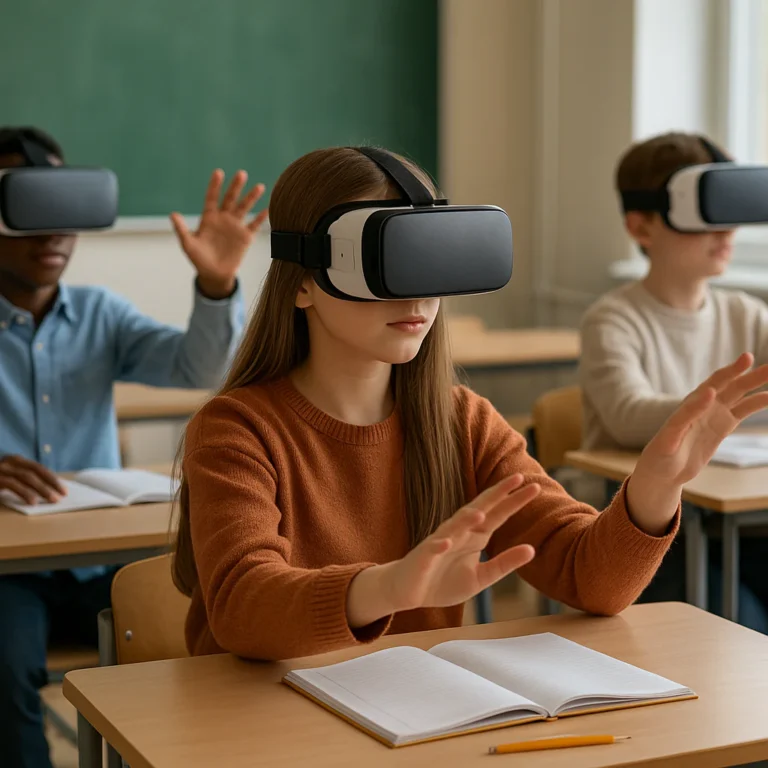
AI can support drafting and feedback; augmented reality can overlay digital information on the physical environment; virtual reality can create simulated experiences. Each can be useful when it provides an experience or form of access that meaningfully fits the objective.
But each also raises questions:
- Is the experience accessible and comfortable for students?
- Can its claims and content be checked?
- What data does it collect?
- Does it add learning value compared with a simpler method?
- How will students discuss, reflect on, or apply the experience?
Read the U.S. Department of Education’s Artificial Intelligence and the Future of Teaching and Learning report before making AI central to a lesson or school-wide strategy. Treat emerging products as tools to evaluate, not instructions to follow.
Learning analytics and personalized instruction
Learning analytics can help educators spot patterns in student responses and activity. Used carefully, those patterns may inform practice or follow-up instruction. Used carelessly, a dashboard can make complex learners look like a traffic light.
Keep interpretation grounded in context:
- Check whether the data reflects the objective.
- Combine platform results with student work and conversation.
- Ask whether recommendations are explainable and fair.
- Avoid labelling students based on a single score or automated prediction.
- Give students a chance to explain their thinking and circumstances.
Personalization should expand a teacher’s insight, not narrow a student’s possibilities.